

They often take months to create. PDFs are a great way to present large amounts of information with vibrant graphics and images without cluttering or slowing down your website. But before you load them to your site and hope for organic traffic, it’s important to optimize these PDFs for SEO, so they are easier for search engines to read, index, and rank on SERPs. Because all of that effort you’ve poured into your PDFs should be showing up in rankings for the world to see.
Real quick, what are PDFs, technically?
A PDF, or Portable Document Format, is a file format created by Adobe in the 1990s. PDFs provide a convenient way to present and exchange documents, regardless of the software, hardware, or operating system used by each party. The PDF format is now an open standard maintained by the International Organization for Standardization (ISO).
PDFs are unique because they can contain links, buttons, form fields, audio, video, and business logic. They can also be signed electronically and viewed on Windows and MacOS using the free Adobe Acrobat Reader software.
SEO for PDFs
PDFs have been an integral part of search engines and the search experience for over 20 years. Google first began indexing PDFs in the early 2000s. There was once a myth that Google found PDFs to be unreadable, however, that myth was busted by Google in 2011 by them stating, “Google first started indexing PDF files in 2001 and currently has hundreds of millions of PDF files indexed.” This advancement made it possible for users to search for relevant information not only on HTML web pages but also within PDFs found on those websites.
To find the PDFs from your site that appear on Google SERPs, type the following into Google: filetype:pdf site:[domain name], for example: filetype:pdf site:intrepidonline.com
Disadvantages of loading PDFs onto your site
- Mobile Friendliness
- Since PDFs are designed for consistency, they lack the typical mobile-friendliness that we expect from HTML content.
- Navigation
- PDFs lack the traditional navigation found on a website. Achieving similar navigational results requires including links to other internal pages and resources.
- SEO Attributes
- PDFs share many SEO attributes with HTML content, but they lack others such as structured data, nofollow attributes, UGC (User-Generated Content), and more.
- Crawlability
- Since PDFs rarely change, Google crawlers do not prioritize them and typically crawl them less frequently than HTML content.
- Tracking
- Common trackers cannot be implemented directly on a PDF, necessitating reliance on unique and less effective techniques to track visitors.
But wait…
Even with these disadvantages and Google preferring HTML content over PDFs, PDFs remain an important part of the SERP experience. Google has been able to crawl and index PDFs for over 20 years; however, optimizing PDFs has not been a typical part of standard SEO practices for many agencies and companies. Knowing this, optimizing PDFs for SEO is an advantage for any website that undertakes the process.
Below, you will find a comprehensive guide to PDF SEO best practices that will better enable your documents to be crawled, read, and indexed by Google and other search engines across the web.
PDF Best Practices
Creating and optimizing PDFs is a process similar to creating web pages, but there are some distinct differences.
Optimizing PDFs for Search
Content
Just like any content on your site, PDF content should be well thought out, researched, and written for human readability vs search engines. Follow the E-E-A-T guidelines from Google to create optimized content.
Fonts
We recommend using a standard PostScript font, such as Times New Roman, Helvetica, and Avant Garde, throughout every PDF on your website. Non-standard fonts will likely be embedded into the PDF, increasing the file size. If you choose not to embed the fonts, Adobe Acrobat will substitute the font with a standard PostScript Font.
We also recommend limiting the number of fonts you use to between 1 – 3 fonts. This will help keep the size of your PDF down.
To check if you have embedded fonts in your PDF, follow these instructions in Adobe Acrobat:
- Open your PDF in Adobe Acrobat.
- Select ‘File’.
- Choose ‘Properties’.
- Select the ‘Fonts’ tab.
- Look for fonts that have the notation “(embedded subset)” at the end of their name.
Our font size recommendations come directly from Google Scholar, which has specific standards for scholarly-level PDFs. We believe that since Google Scholar’s crawlers find these font sizes optimal, these recommendations can be applied to any PDF.
The title (H1 tag) of the PDF should be the largest section of text at the top of the page. The font size should be at least 24 pt, and the same font should be used for the entire title. This will prevent crawlers from incorrectly identifying the document’s title.
If your PDF has an author(s), they should be listed right before or after the title in a slightly smaller font size. The authors should still be a larger font size than the rest of the document, ranging from 16 to 23 pt, as recommended by Google Scholar. The font should be consistent across all authors of the PDF. Multiple authors should be separated using commas or semicolons. Remove any affiliations, degrees, and certifications from the author line. If appropriate, you can use a format such as ‘by John Smith’ or ‘Author: John Smith.’
If your PDF is connected to a repository or journal, the font size of the repository or journal should be smaller than that of the title and authors to avoid confusion. However, it should be larger than the font size of the rest of the body text.
Google Scholar also recommends that headings should use ‘sentence case’ instead of ‘title case’ to avoid confusion with the title and authors’ names.
The body font size should be smaller than that of the title, authors, repository, and/or journal.
Figures and Images
The figures and tables used throughout your PDF should be readable by search engines. We recommend employing vector graphics (AI, EPS, PDF, SVG, and WMF files) with font-based text, rather than rasterized images (JPEG, BMP, GIF, TIFF, WebP, and PNG files).
This recommendation differs from our usual suggestion for SEO best practices, which involves updating images to WebP files. However, it aligns with the guidance from Google Scholar, which specifically prefers vector graphics over rasterized images. We recommend using an SVG file for all your vector graphics, if possible.
If you must use rasterized images, make them monochromatic to reduce the size of the image and, in turn, reduce the size of the PDF.
Meta Tags
Just like with traditional web pages, we recommend implementing best practices for the meta tags on your PDFs. Titles and meta descriptions provide information about a page in search engine results before users click on it. Enticing meta descriptions can increase click-through rates (CTR) and may also boost leads.
Although Google has stated that recommended lengths have been deprecated, having tags outside of the target lengths increases the likelihood of Google changing your title and/or meta description for display purposes on the SERPs. This may lead to descriptions or titles that do not fit your preferred presentation. The recommended lengths are:
- Title tags: 50-60 characters
- Meta descriptions: 150-160 characters
Ensure that title tags and meta descriptions are of the correct length and incorporate relevant keywords to communicate effectively with search engines and viewers. Avoid duplicate title tags or meta descriptions across your website and PDFs.
To find and edit this data, we recommend using Adobe Acrobat and following these instructions:
- Open your PDF in Adobe Acrobat.
- Select ‘File’.
- Choose ‘Properties’.
- In the ‘Document Properties’ dialog box, select a tab relevant to your editing needs (e.g., ‘Description’ for title and meta description).
- Make the necessary edits.
- Click ‘OK’ to save the changes.
Headings
Headings within PDFs can be handled similarly to HTML content. There should only be one H1 tag at the top. As mentioned earlier, the H1 tag of the PDF should be the largest section of text at the top of the page, with a font size of at least 24 pt. It’s crucial to use the same font for the entire title to prevent crawlers from getting the document’s title wrong.
The remaining structure of the PDF can include multiple H2-H6 tags based on the content’s needs. If the PDF is targeting Google Scholar, it’s recommended to use ‘sentence case’ instead of ‘title case’ for all remaining headings. H2-H6 should have smaller font sizes than the H1 tag and, in most cases, be smaller than the author name, repository, and/or journal as well.
We also recommend tagging headings to better help Google understand the structure of the PDF. You can find instructions on how to do this within the Tagging section.
File Names
If your PDF is not meant to target Google Scholar, we recommend creating a keyword-relevant and search-friendly file name. However, if your PDF is scholarly, we recommend not adjusting the file name with additional keywords, but sticking with the title of the PDF.
For all PDFs, regardless of the intended search engine they are targeting, we recommend the following instructions:
- Keep the file name to 50 to 60 characters.
- Match the URL to the PDF title if possible.
- Remove punctuation, hashes, and stop words (and, or, but, of, the, a, etc.).
- Always use lowercase letters.
- When separating words, use hyphens if possible.
Tagging
Tagging content in your PDF enhances accessibility for visitors with disabilities and contributes to SEO visibility. Tags can be applied to headings, body copy, images, links, and abbreviated terms.
Tagging Headings
When you are structuring an HTML web page, you add heading tags to help search engines’ crawlers better understand your page. PDFs do not have the same capabilities. Instead, you have to add tags to different headings to communicate the same information.
Follow these steps to add tags to headings in a PDF:
- Open your PDF in Adobe Acrobat.
- Select ‘View’ > ‘Show/Hide’ > ‘Navigation Panes’ > ‘Tags.’
- Choose ‘New Tag.’
- Select the appropriate tag type for the heading (e.g., ‘H1’, ‘H2’, ‘H3’, etc.).
- Drag and drop the tag at the beginning of the heading text.
- Ensure the tags are in the correct reading order by dragging and dropping them within the ‘Tags’ panel.
Tagging Body Copy
We also recommend tagging your body copy in addition to your headings.
To add tags to headings and body copy, follow these steps:
- Open your PDF in Adobe Acrobat.
- Select ‘View’ > ‘Show/Hide’ > ‘Navigation Panes’ > ‘Tags.’
- Choose ‘New Tag.’
- Select the appropriate tag type for the body copy (e.g., ‘P’ for paragraph).
- Drag and drop the tag onto the body copy.
- For body copy, create a new tag (if not already present) and drag it onto the body copy.
- Ensure the tags are in the correct reading order by dragging and dropping them within the ‘Tags’ panel.
Alternate Text for Links
- Open your PDF in Adobe Acrobat.
- Select ‘View’ > ‘Show/Hide’ > ‘Navigation Panes’ > ‘Tags’.
- In the Tags panel, locate and select the ‘<Link>’ tag for your desired link.
- Click on ‘Properties’ in the ‘Options’ menu.
- In the ‘Touch Up Properties’ dialog box, select the ‘Tag’ panel.
- Enter the alternate text for the link.
- Click ‘Close’.
Alternate Text for Images/Graphics
- Open your PDF in Adobe Acrobat.
- Select ‘View’ > ‘Show/Hide’ > ‘Navigation Panes’ > ‘Tags’.
- In the Tags panel, locate and select the ‘<Figure>’ tag for your desired image.
- Choose ‘Highlight Content’ from the ‘Options’ menu in the Tags panel.
- Click on ‘Properties’ in the ‘Options’ menu.
- In the ‘Touch Up Properties’ dialog box, select the ‘Tag’ panel.
- Enter the alternate text for the image/graphic.
- Click ‘Close’.
Alternate Text for Abbreviations
- Open your PDF in Adobe Acrobat.
- Select ‘View’ > ‘Show/Hide’ > ‘Navigation Panes’ > ‘Tags’.
- Use the ‘Touch Up Text’ tool or the ‘Select’ tool to choose the abbreviation.
- In the ‘Touch Up Properties’ dialog box, select the ‘Tag’ panel.
- Enter the alternate text for the abbreviation.
- Click ‘Close’.
Links
Just like an HTML web page, a PDF should include both internal and external links. These links are treated similarly and are used by search engines to understand and rank pages based on authority. We also recommend adding links from HTML web pages to your various PDFs.
Ensure that the links have unique anchor text, are relevant to the content, and are keyword-rich.
To create a link using Adobe Acrobat, follow these instructions:
- Open your PDF in Adobe Acrobat.
- Select ‘Tools’.
- Choose ‘Edit PDF’.
- Click on ‘Link’.
- Select ‘Add or edit’.
- Drag the rectangle to define the area for the link.
- In the ‘Create Link’ dialog box, choose the options for the link appearance.
- Select one of the following options:
- ‘Go to a page view’.
- ‘Open a file’.
- ‘Open a web page’.
- ‘Custom link’.
Mobile Friendliness
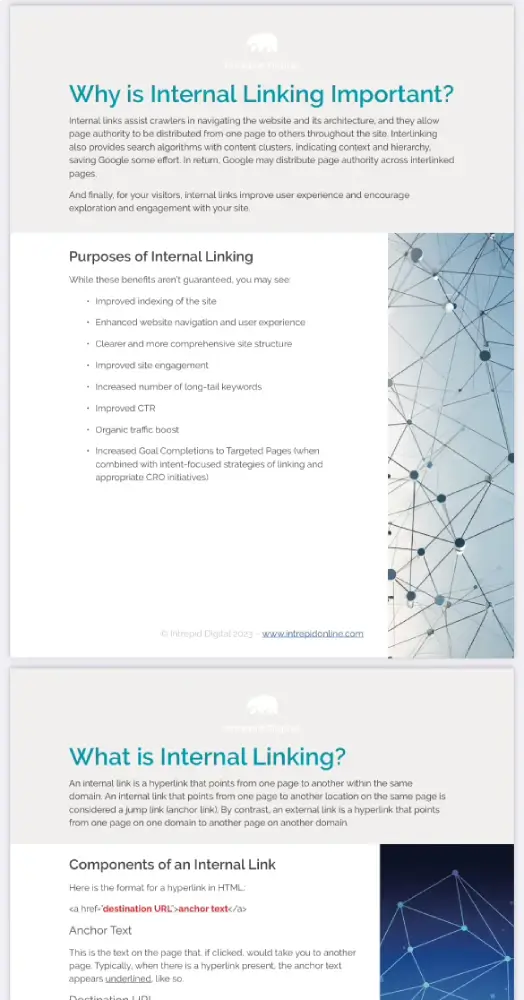
Currently, there is no such thing as a truly mobile-friendly PDF document. However, there are some things you can do to improve readability and the experience for mobile users. These include left-aligning your text, using bullet points, using images cautiously, breaking up content with relevant headings, and shortening paragraphs.
However, no matter what you do, the PDF experience on mobile is subpar compared to desktop. Below, you will find a mobile screenshot of one of Intrepid Digital’s recent PDFs.
Security
It’s important to secure your PDF to ensure that no unauthorized changes can be made after publishing.
To secure your PDF using Adobe Acrobat, follow these instructions:
- Open your PDF in Adobe Acrobat.
- Select ‘All tools’.
- Choose ‘Protect a PDF’.
- Click on ‘Encrypt with password’.
- If prompted, click ‘Yes’ to change the security settings.
- Choose ‘Restrict editing and printing of the document’.
- Type the password into the designated field.
- Select printing permissions from the ‘Allowed printing’ menu:
- ‘None’
- ‘Low resolution (150 dpi)’
- ‘High resolution’.
- Specify editing permissions from the ‘Changes allowed’ menu:
- ‘None’
- ‘Inserting, deleting, and rotating pages’
- ‘Filling in form fields and signing existing signature fields’
- ‘Commenting, filling in form fields, and signing existing signature fields’
- ‘Any except extracting pages’.
- Choose between:
- ‘Enable copying of text, images, and other content’
- ‘Enable text access for screen reader devices for the visually impaired’.
- Select an Acrobat version from the ‘Compatibility’ menu.
- Choose one of the following options:
- ‘Encrypt all document contents’
- ‘Encrypt all document contents except metadata’
- ‘Encrypt only file attachments’.
- Click ‘OK’.
- Retype your password when prompted.
- Click ‘OK’.
File Size
Similar to HTML web pages, speed and performance are crucial factors in creating web-safe PDFs. There are several options to reduce file size, including removing embedded fonts, compressing images, and eliminating unnecessary items from the file.
To start, we recommend auditing your PDF to get a report that shows the total number of bytes for elements such as images and fonts. Follow these directions in Adobe Acrobat:
- Open your PDF in Adobe Acrobat.
- Select ‘File.’
- Choose ‘Save as other.’
- Select ‘Optimize PDF.’
OR
- Select ‘Tools.’
- Choose ‘Optimize PDF.’
- Select ‘Advanced optimization.’
- In the PDF Optimizer dialog box, click on the ‘Audit space usage’ button at the top.
Within the ‘PDF Optimizer’ dialog box, continue to reduce the size of your PDF. We recommend examining all the available options, starting with compressing images, unembedding fonts, and flattening transparent images.
We also recommend enabling Fast Web View, which restructures PDFs for page-at-a-time downloading from web servers.
To do this using Adobe Acrobat, follow these instructions:
- Open your PDF in Adobe Acrobat.
- Find the ‘Preferences’ dialog box under ‘Categories.’
- Select ‘Documents.’
- Choose ‘Save as optimized for Fast Web View’ under ‘Save settings.’
- Select ‘Ok.’
Additionally, you can compress the file size using Adobe’s online File Compressor.
Bibliographic Citation
Bibliographic citations should be included within the PDF. These can be placed within the header or footer of the first page of the PDF. Use an explicit citation format, for example, ‘J. Biol. Chem., vol. 234, no. 8, pp. 1971-1975, August 1959’. If the document is not yet published, you should include the full date of its current version on a line by itself.
Avoid using Type 3 fonts when creating PDF files. They typically result in missing or incorrect font sizes and character encoding information. This can cause difficulties in extracting bibliographic data from the PDFs. Google Scholar’s automated parsers cannot identify bibliographic data that is not 100% accurate. This could lead to your PDF being excluded from Google Scholar. If you are not satisfied with the results from Google Scholar, they recommend that you create an HTML page with the abstracts and add HTML meta tags to better communicate with the crawlers.
References
You should mark the section of the page that contains the references as ‘References’ or ‘Bibliography.’ Each reference within this section should be numbered. The text within each reference should be a formal bibliographic citation typically used in this format without free-form commentary.
This information is being crawled and read by parsing software and will not be entered or fixed by a human. If these references are not correctly identified, it could cause your document to be excluded by Google Scholar or ranked lower.
Tracking
Tracking PDFs can be challenging. Many websites choose to gate their PDFs, allowing access only through sign-ups or form submissions, which certainly makes tracking easier.
Here are other tracking solutions you can try.
Event Tracking
You can track clicks on PDF links and send that data to your analytics system. This will allow you to see how many people clicked on a link to either view or download a PDF. With GA4, you can also track file downloads, which doesn’t require tracking a click, but the download itself.
Embedded Tracking
Another option is to embed the PDF using JavaScript or an iframe and then use the analytics data from the page. This option wouldn’t work on a downloaded pdf, only a hosted one.
Intermediate Tracking Script
You can send PDF clicks through an intermediate tracking script that will send data to your analytics system before providing the PDF to the visitor.
Server logs
Review your server logs where the PDF files are stored to see how many people have requested access to the files.
3rd-Party Data
Finally, you can use 3rd-party data such as Google Search Console, SEMRush, or Ahrefs to track the number of visitors to URLs containing ‘.pdf’ in them. Since data from tools like SEMRush and Ahrefs can be estimated, we recommend using Google Search Console for more accurate data.
In Conclusion
We hope you use these tips to optimize your big, beautiful PDFs so that they can be indexed properly and start ranking in search engine results. What is often a labor-intensive piece of content should get the attention it deserves. Good luck!